
In the world of AI, running large language models (LLMs) locally is a game-changer. Enter Ollama, a platform designed to bring powerful AI models directly to your machine—without the need for cloud-based services. If privacy, speed, and offline capability matter to you, Ollama is an excellent solution.
You can also use this platform to explore and learn about AI—perfect for both beginners and AI enthusiasts looking to experiment with cutting-edge models without internet dependency.
What is Ollama?
Ollama is a tool that allows users to run state-of-the-art LLMs on their local machines. Unlike traditional AI services that rely on cloud computing, Ollama keeps everything on your device, ensuring full control over data privacy and security.
It supports popular models like Deepseek-r1, Qwen2.5, Llama 2, Gemma 2, and Code Llama, making it useful for various applications such as text generation, code completion, and multilingual processing.
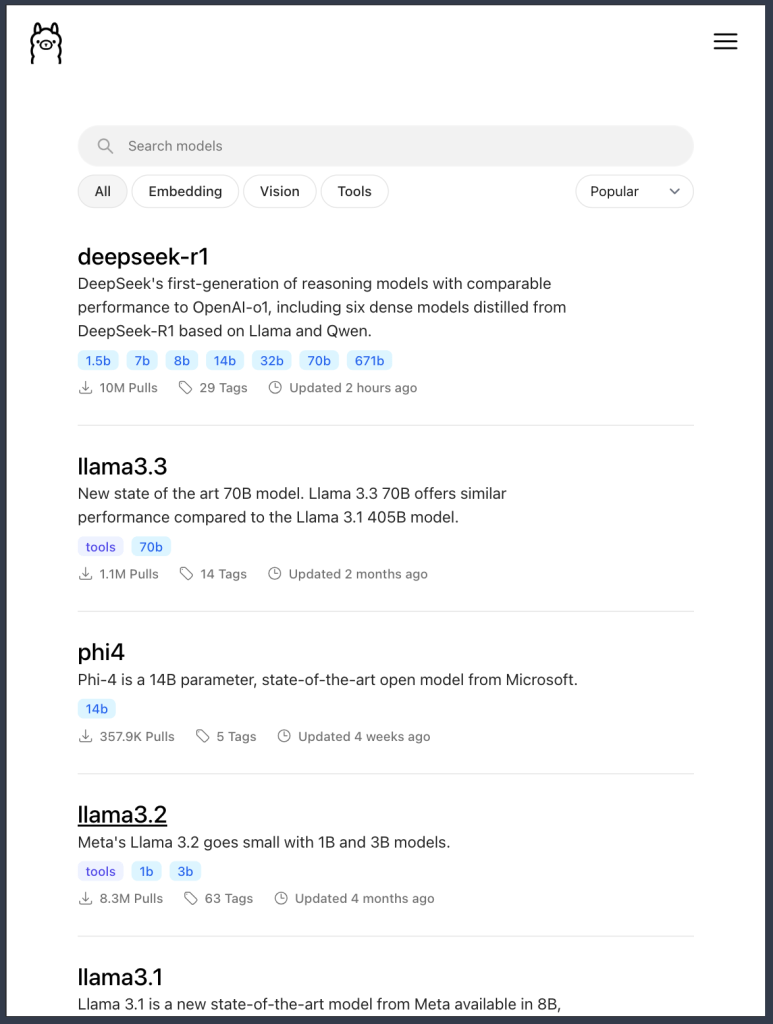
Since Ollama does not require an internet connection, it is also a safe platform for kids to have fun and learn about AI without the risks of online exposure. Children can explore AI-powered conversations, storytelling, and coding in a secure, controlled environment.
Why Use Ollama?
🔹 Privacy & Security – Your data stays on your machine, making it ideal for sensitive applications.
🔹 No Internet Required – Run AI models offline without any dependency on cloud services.
🔹 Customizable – Choose from pre-trained models or fine-tune them for specific needs.
🔹 Fast & Efficient – No latency issues caused by server requests.
🔹 Safe for Kids – With no internet access required, Ollama provides a risk-free AI playground for children to explore and engage with AI models.
How to Use Ollama?
Getting started with Ollama is simple. Follow these steps:
Step 1: Install Ollama
Download and install Ollama from ollama.com based on your operating system (Windows, macOS, Linux).
Step 2: Verify Installation
Open a terminal or command prompt and run:
ollama --version
This ensures the installation was successful.
Step 3: Choose a Model
To list available models, use:
ollama list
Pick a model that fits your use case.
Step 4: Run a Model
To launch a model, use:
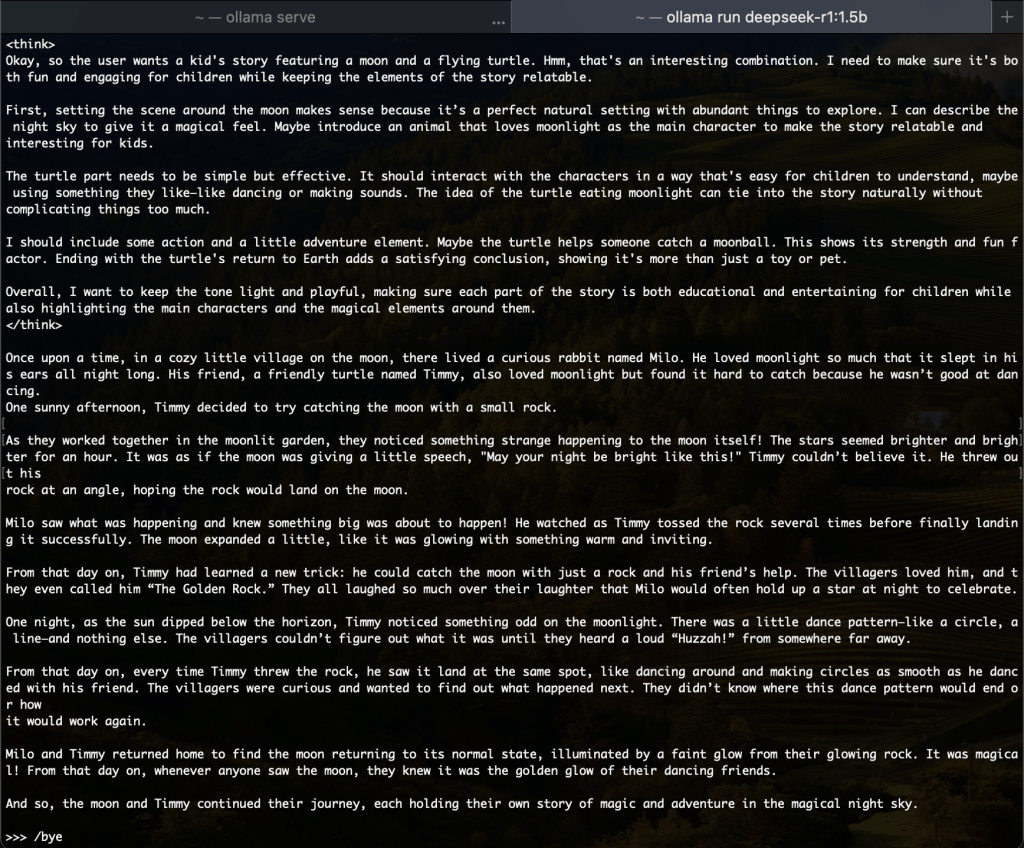
ollama run deepseek-r1:1.5b
For example, running deepseek-r1:1.5b enables you to generate text responses.
Step 5: Start Interacting
Once you have started a model, you can interact with it just like chatting with a smart assistant. Try these simple and fun prompts to see AI in action:
📝 Creative Writing Prompt
"Give me a kids' story about the moon and a flying turtle."
💡 Ollama will generate a cute and imaginative story! Great for kids and storytelling fun.
🎓 Learning & Education
"Explain photosynthesis in simple words for a 7-year-old."
💡 Perfect for students! Ollama will break down complex topics into easy-to-understand explanations.
🎭 Jokes & Fun
"Tell me a funny joke about robots."
💡 Get AI-generated jokes for a good laugh!
Final Thoughts
Ollama is revolutionizing local AI model deployment, making it easy for developers, researchers, and businesses to integrate AI into their workflows without cloud dependencies.
Whether you’re into coding, AI research, or business applications, Ollama puts the power of AI in your hands. Plus, since it’s completely offline, it’s a safe and fun tool for kids to explore AI without worrying about internet safety.
Try it out today and unlock the full potential of local AI processing! 🔥






Leave a comment